빠른 네이티브 뷰어Fast native viewer
Rust로 만든 6 MB짜리 앱 (Windows·Mac). ZRLE, 로컬 커서, 변경된 영역만 그려 지연이 거의 없습니다.A 6 MB Rust app for Windows and Mac. ZRLE, local cursor and dirty-region drawing keep latency down.
Itda는 Windows와 Mac에서 Mac의 화면 공유, Windows PC, Linux에 바로 연결하는 가볍고 빠른 원격 데스크톱입니다. iPhone·Android에서는 앱 설치 없이 브라우저로 엽니다. Itda is a tiny, fast remote desktop for Windows and Mac that opens your Mac's built-in Screen Sharing, Windows PCs and Linux boxes — and lets iPhone and Android open them from a browser, no app needed.

이 기기들과 함께Works with
복잡한 설정 없이 켜고, 고르고, 연결하세요. 서비스 수준의 편의 기능은 그대로 담았습니다.Turn it on, pick a device, connect. All the conveniences of a commercial remote desktop, none of the bloat.
Rust로 만든 6 MB짜리 앱 (Windows·Mac). ZRLE, 로컬 커서, 변경된 영역만 그려 지연이 거의 없습니다.A 6 MB Rust app for Windows and Mac. ZRLE, local cursor and dirty-region drawing keep latency down.
Mac에 아무것도 설치하지 않습니다. 기본 화면 공유를 켜고 Mac 계정으로 로그인하면 끝.Nothing to install on the Mac. Turn on Screen Sharing and sign in with your Mac account.
다른 PC의 Itda 공유(모든 Windows) 또는 원격 데스크톱(Pro)으로. Mac 앱과 브라우저에서도 RDP를 열고, 해상도가 창 크기를 따라갑니다.Via Itda's Share this PC (any Windows) or Remote Desktop (Pro). The Mac app and browsers open RDP too, and the desktop follows the window size.
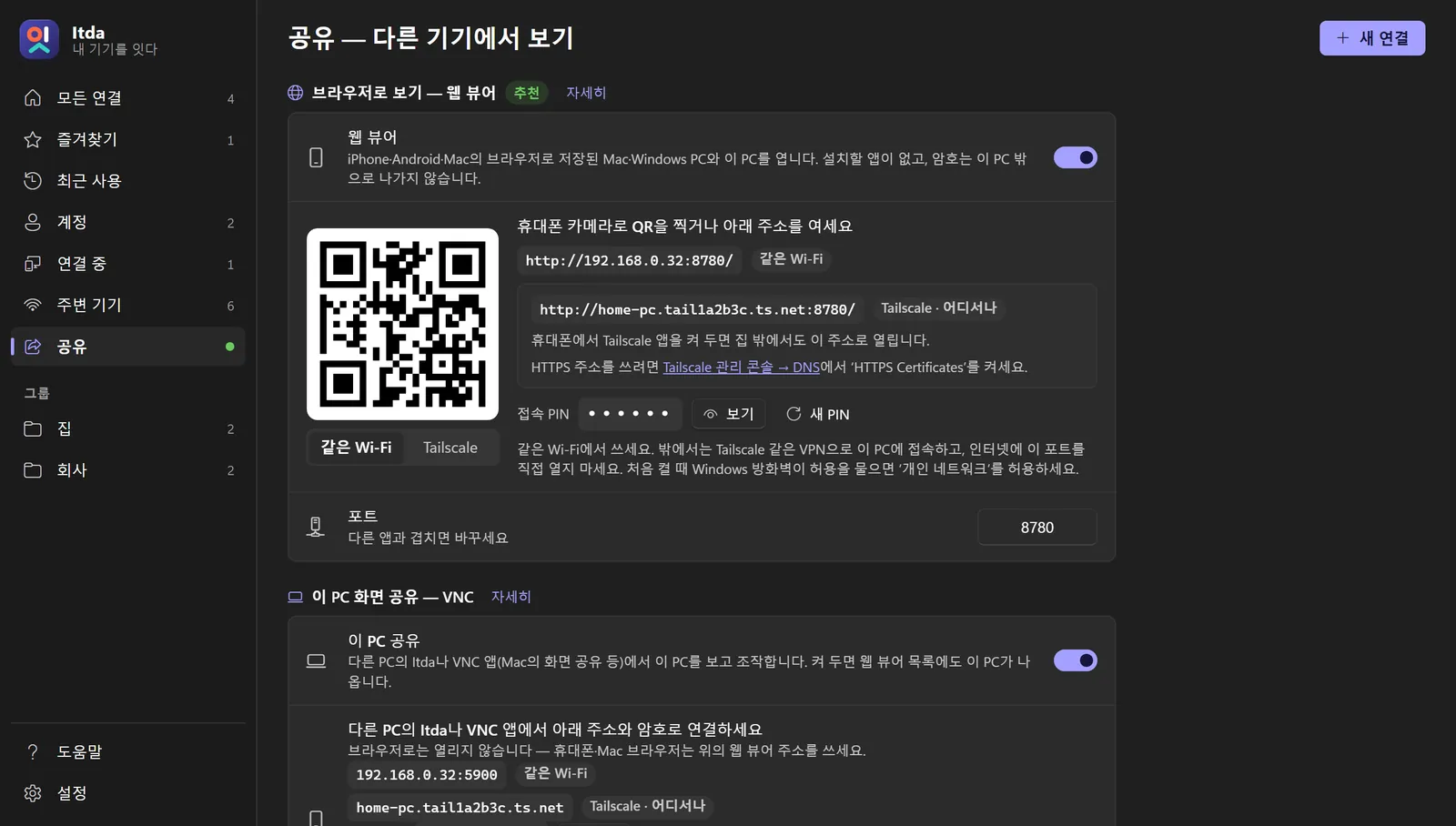
iPhone·Mac·Android에서 QR을 찍고 PIN만 넣으면 열립니다. 홈 화면에 추가해 앱처럼(PWA).Scan a QR code on iPhone, Mac or Android, enter a PIN, done. Add it to your home screen as an app (PWA).
공용 Wi-Fi나 인터넷 너머에서는 스위치 하나로 SSH 터널. 키 파일도 지원합니다.One switch wraps the connection in an SSH tunnel for public Wi-Fi and the internet. Key files supported.
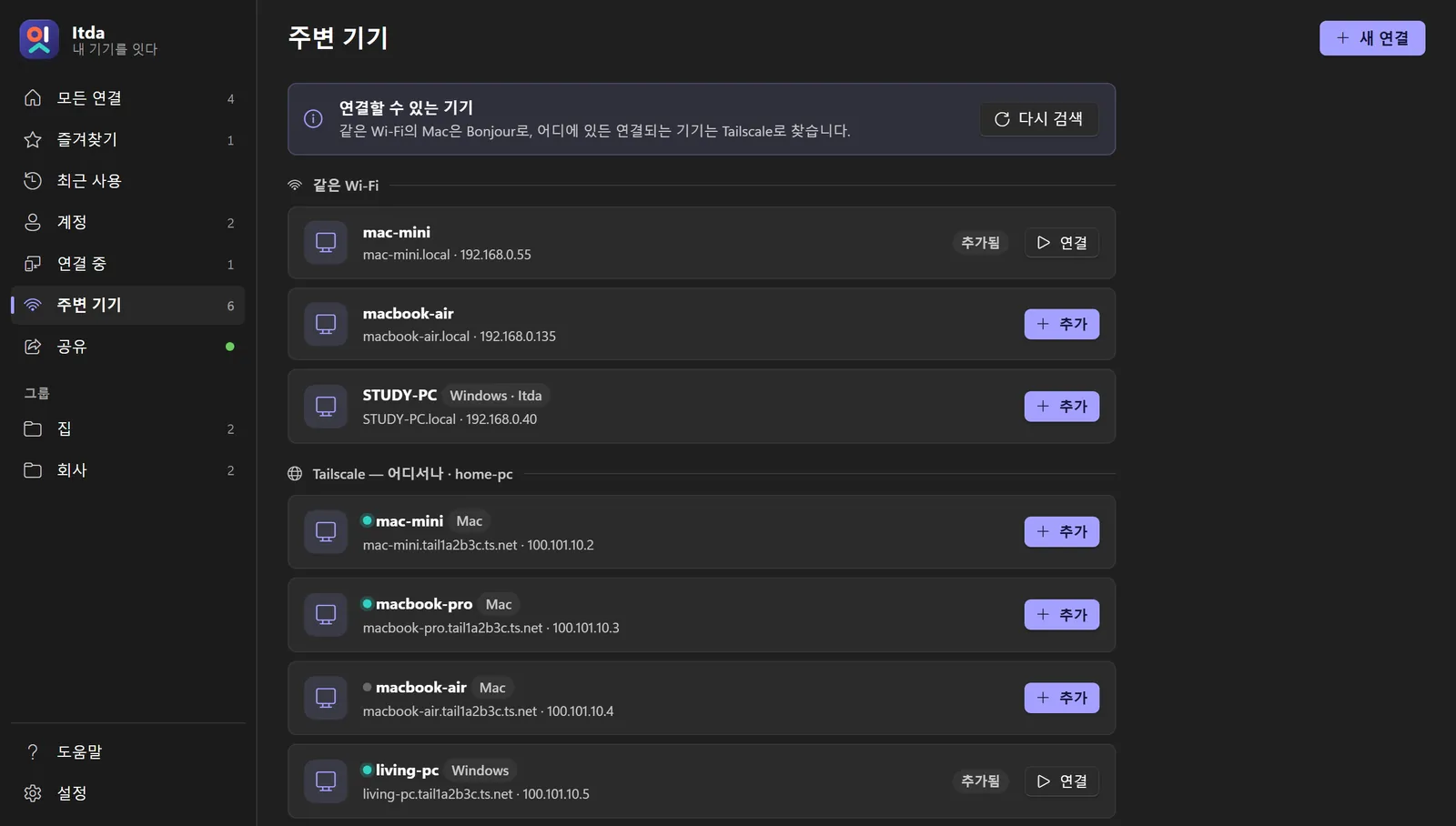
공유기 설정 없이 집 밖에서도. Tailscale 기기를 자동으로 찾고 HTTPS 주소도 만들어 줍니다.No port forwarding. Tailscale devices show up automatically, and Itda can mint an HTTPS address.
같은 계정을 쓰는 Mac 여러 대는 계정 하나로. 암호를 바꿀 때도 한 곳만 고치면 됩니다.Save an account once and reuse it on every Mac. Change the password in one place.
내 PC도 다른 기기에서 보고 조작할 수 있게. 내 기기는 공유 암호만으로 바로, 낯선 곳에서는 허락을 묻습니다.Let your other devices see and control this PC. Your own devices get in with the password; anyone else is asked about first.
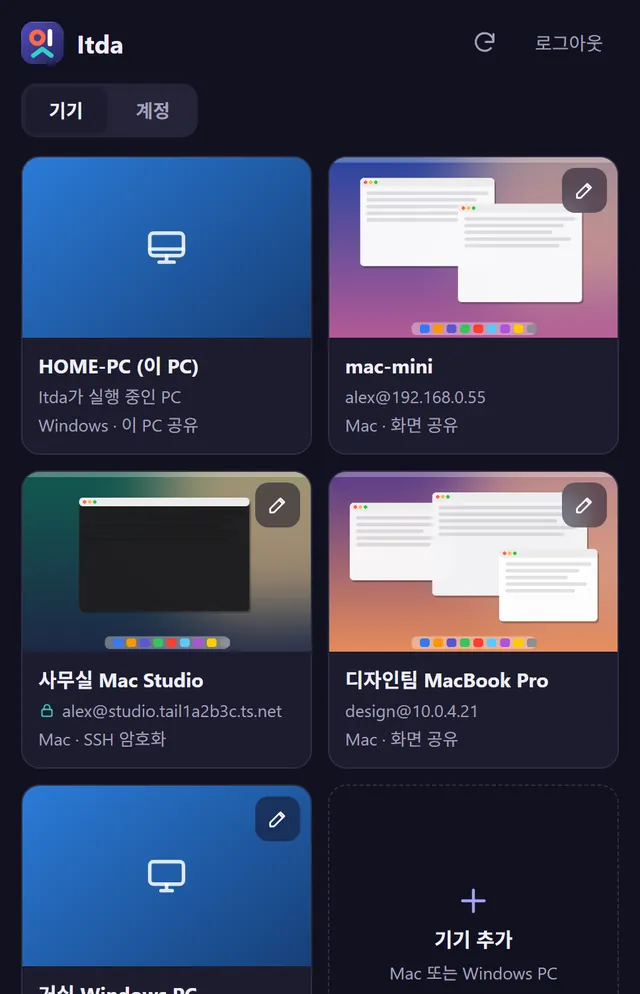
마지막 화면 미리보기, 온라인 표시, 즐겨찾기, 그룹, 검색. 주소를 바로 입력해도 됩니다.Live previews, online dots, favourites, groups and search — or just type an address.
Windows PC의 Itda가 작은 웹 서버가 됩니다. 휴대폰·태블릿(또는 어떤 브라우저든)으로 저장된 모든 기기와 그 PC 자신을 열고, 기기와 계정도 관리하세요.Itda on a Windows PC becomes a tiny web server. Phones, tablets — any browser — open every saved device and that PC itself, and can manage devices and accounts too.
공유 페이지에서 ‘모두 켜기’를 누르면 QR과 PIN이 나옵니다. 휴대폰 카메라로 찍으면 끝.Hit “Turn on both” on the Share page and you get a QR code and PIN. Point your phone's camera at it.
클라우드 중계 서버도, 가입도 없습니다. 내 네트워크 안에서 내 기기끼리 바로 연결합니다.No cloud relay, no accounts. Your devices talk to each other on your own network.
Mac은 화면 공유, PC는 Itda 공유나 원격 데스크톱, Linux는 VNC 서버.Screen Sharing on a Mac, Itda sharing or Remote Desktop on a PC, a VNC server on Linux.
주변 기기에서 ‘추가’를 누르거나 주소를 입력하고 계정을 저장합니다.Click Add in Nearby, or type an address and save the account.
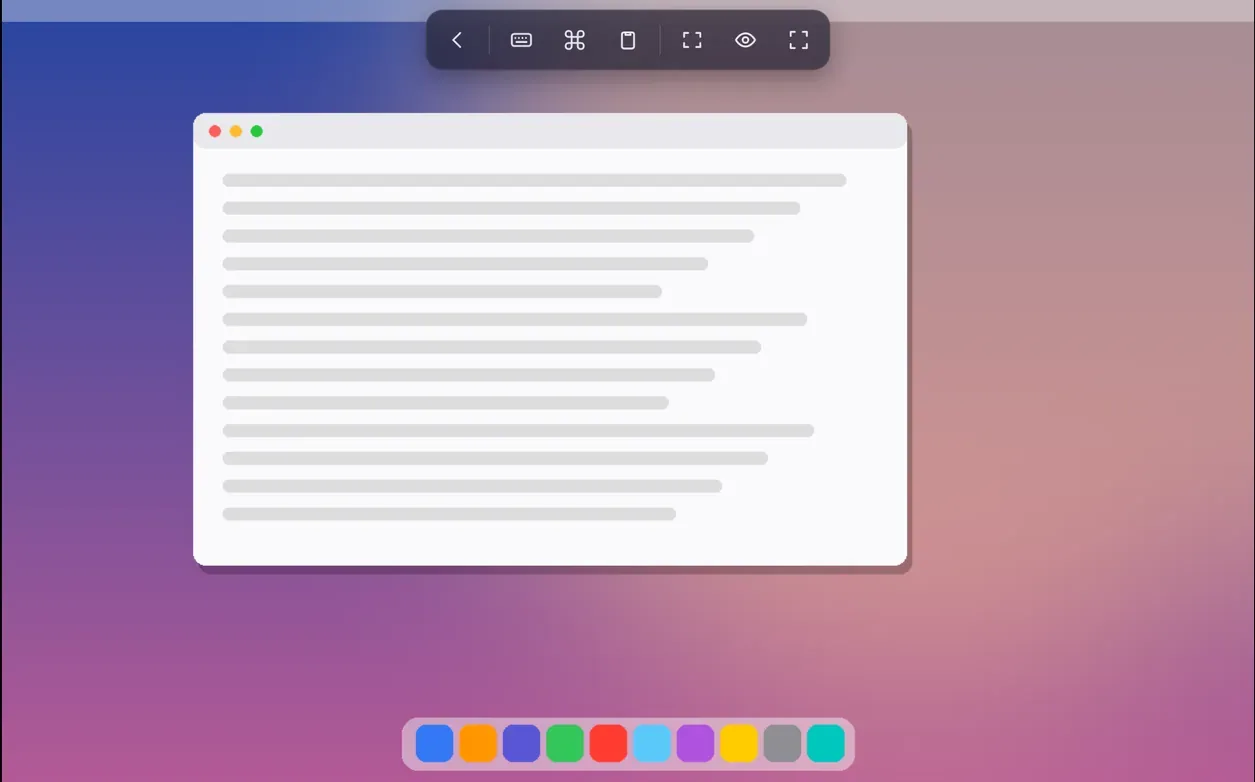
PC에서는 창으로, 휴대폰·Mac에서는 브라우저로. 밖에서는 Tailscale.In a window on the PC, in a browser everywhere else. Tailscale when you're out.
클라우드 계정도, 중계 서버도 없습니다. 투명하게 공개된 코드로 검증할 수 있습니다.No cloud account, no relay server — and the code is open for you to check.
암호와 키 암호는 Windows 자격 증명 관리자나 Mac 키체인이 암호화해 보관합니다. 설정 파일에는 저장하지 않습니다.Passwords and key passphrases are kept encrypted by Windows Credential Manager or the macOS Keychain, never written to settings files.
Mac은 Apple의 DH + AES 로그인, RDP는 TLS와 네트워크 수준 인증(NLA)으로 접속합니다.Macs sign in with Apple's DH + AES scheme; RDP uses TLS with Network Level Authentication.
웹 뷰어는 6자리 PIN → HttpOnly 쿠키. 5번 틀리면 잠기고, 다른 사이트의 접속(Origin)은 거부합니다.The web viewer uses a 6-digit PIN → HttpOnly cookie, locks after 5 misses and rejects cross-site requests.
이 PC 공유는 같은 네트워크·내 Tailscale 밖에서 오는 연결마다 화면에 허락 창을 띄우고(설정으로 모두 묻게 할 수도 있음), 보는 사람을 알림 영역에 표시합니다.Share this PC asks on screen before any viewer from outside your network or tailnet gets in (or before every viewer, if you prefer), and shows who's watching in the tray.
권장: 웹 뷰어와 이 PC 공유는 같은 Wi-Fi나 Tailscale 안에서 쓰세요. 공유기에서 포트를 인터넷에 직접 열지 마세요. 밖에서는 Tailscale의 HTTPS 주소를 쓰면 됩니다.Recommended: use the web viewer and Share this PC on your own Wi-Fi or over Tailscale. Don't forward these ports to the internet — use Tailscale's HTTPS address when you're away.
네. MIT 라이선스의 오픈 소스이고, 가입·구독·광고가 없습니다.Yes. It's open source under the MIT license — no sign-up, subscription or ads.
아무것도요. 시스템 설정 → 일반 → 공유에서 ‘화면 공유’를 켜면 됩니다. 밖에서 쓸 거라면 ‘원격 로그인(SSH)’도 켜 두세요.Nothing. Turn on Screen Sharing in System Settings → General → Sharing. Turn on Remote Login (SSH) too if you'll connect from outside.
Mac: 있습니다. 릴리스에서 Itda-macos-universal.zip을 받아 압축을 풀고, 처음 열 때 ‘Apple이 확인할 수 없습니다’가 뜨면 완료를 누르고, 시스템 설정 → 개인정보 보호 및 보안 아래쪽의 그래도 열기를 누르세요 (macOS 14 이하는 Itda.app을 오른쪽 클릭 → 열기). 다른 Mac, Windows PC(원격 데스크톱 포함), Linux를 바로 엽니다. iPhone: Windows PC의 Itda에서 웹 뷰어를 켜고 Safari로 열어 홈 화면에 추가하세요.Mac: yes. Download Itda-macos-universal.zip from Releases, unzip it, and If macOS says it can't check Itda, click Done, then Open Anyway near the bottom of System Settings → Privacy & Security (on macOS 14 and earlier, right-click Itda.app → Open). It opens other Macs, Windows PCs (Remote Desktop included) and Linux directly. iPhone: turn on the web viewer in Itda on your Windows PC, open it in Safari and add it to your Home Screen.
계정에 이메일 주소, 암호에 그 Microsoft 계정 암호를 넣으세요. 로그인 화면의 숫자 PIN이나 얼굴 인식은 원격 접속에 쓸 수 없습니다. 계속 실패하면 그 PC의 설정 → 계정 → 로그인 옵션에서 ‘Windows Hello 로그인만 허용’을 끄고, 한 번 암호로 로그인하세요. Windows · Itda로 추가한 PC는 Windows 암호가 아니라 그 PC의 공유 암호(8글자)를 씁니다.Use the email address as the account and the Microsoft account password — the sign-in PIN or face unlock won't work remotely. If it keeps failing, turn off “Only allow Windows Hello sign-in” under Settings → Accounts → Sign-in options on that PC and sign in once with the password. A PC added as Windows · Itda uses its 8-character share password instead.
네. Windows Home에는 원격 데스크톱 서버가 없지만, 그 PC에 Itda를 설치하고 ‘이 PC 공유’를 켜면 어떤 Windows든 연결됩니다.Yes. Home has no Remote Desktop host, but install Itda on it and turn on Share this PC — that works on every edition.
모든 기기에 Tailscale을 설치하고 같은 계정으로 로그인하세요(개인 무료). Itda가 Tailscale 기기를 자동으로 보여 주고, 웹 뷰어의 Tailscale 주소·HTTPS 주소도 만들어 줍니다.Install Tailscale on every device and sign in with the same account (free for personal use). Itda lists your Tailscale devices and shows the web viewer's Tailscale/HTTPS address.
아직 코드 서명이 없는 새 앱이라 SmartScreen이 경고합니다. ‘추가 정보’ → ‘실행’을 누르세요. 소스와 빌드 방법은 GitHub에 공개되어 있습니다.The app isn't code-signed yet, so SmartScreen warns about it. Click “More info” → “Run anyway”. Source and build steps are on GitHub.
계정·클라우드 없이 Mac의 기본 화면 공유와 Windows 원격 데스크톱 같은 표준 프로토콜을 그대로 씁니다. 상대 기기에 별도 앱을 깔 필요가 없고, 앱은 6 MB 남짓입니다.No accounts or cloud: Itda speaks the standard protocols your devices already have — Mac Screen Sharing, Windows Remote Desktop, VNC. Nothing extra on the other side, and the app is about 6 MB.

다운로드 → 실행 → 연결. 5분이면 충분합니다.Download → run → connect. Five minutes is plenty.